Hello, I’m Chino Yoshio, a composer quietly based in Kyotanabe, Kyoto.
Generating Impulse Response Data Using REW
Hello, I’m Chino Yoshio, a composer quietly based in Kyotanabe, Kyoto.
This note explains how to generate impulse response (IR) files using the free software REW (Room EQ Wizard). It’s a slightly advanced topic for those interested in room acoustics or reverb creation.
What is an Impulse Response File?
An impulse response (IR) captures the acoustic characteristics of a particular device or space — such as a speaker cabinet, microphone, or room — as a digital audio file. Many modern DAWs now include convolution reverb plug-ins that can import and use IR files.
Quick Overview of the Process
Generate a test sweep in REW. Play the sweep through a speaker and record it with a measurement microphone. Import both the sweep and the recorded file back into REW. → REW will automatically generate an IR file.
Creating a Test Sweep in REW
Go to Generator > Sweeps > Measurement. Recommended settings: Start Frequency: 50 Hz End Frequency: 18 kHz Length: 512 k (≈ 11.9 s) Save as 16-bit / 44.1 kHz WAV
Recording the Sweep
If you want to capture the acoustic response of a room, play the test sweep through a flat-response monitor speaker and record it with a measurement microphone. Set the recording format to 16-bit / 44.1 kHz.
Importing the Recorded Sweep into REW
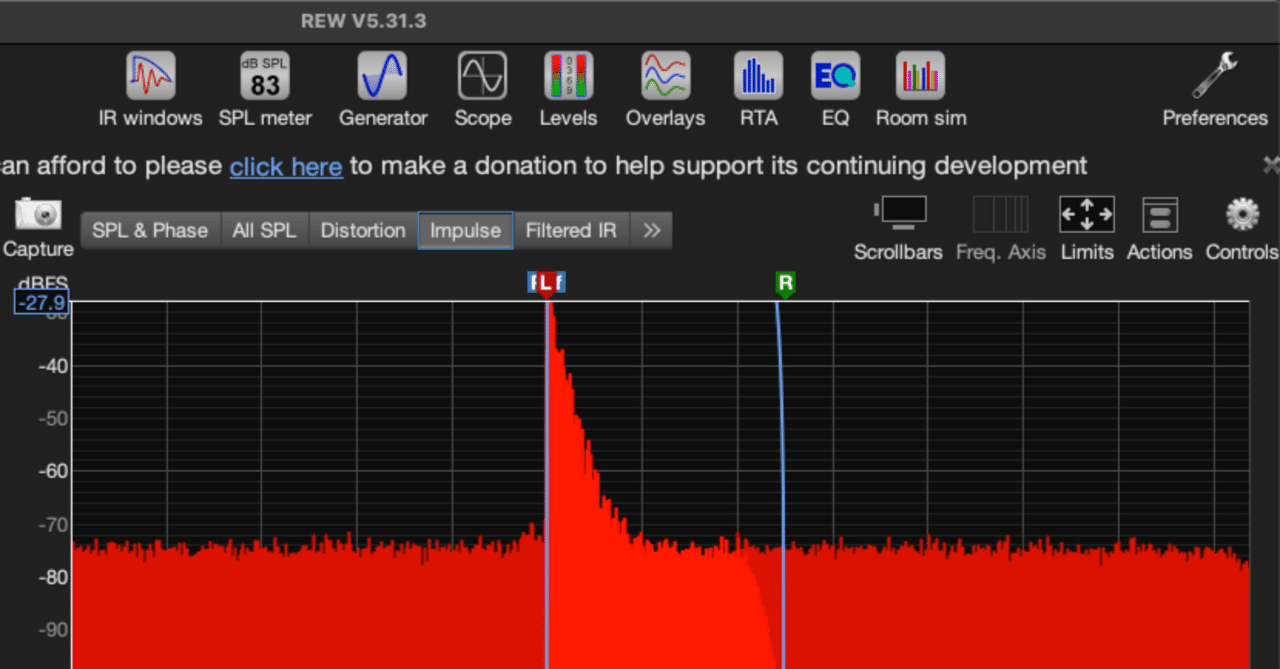
Navigate to File > Import > Import sweep recordings. Assign the original test sweep to Stimulus. Assign the recorded sweep to Response. Open the Impulse tab and adjust the L and R markers around the decaying waveform. Then choose Export impulse response as WAV > Export measured IR, and check: Normalize samples as peak value Apply IR Window before Export 44.1 kHz
Loading the IR into Your DAW
Import the exported IR into a convolution reverb plug-in. In my case, I use Space Designer in Logic Pro via “Load IR.” Before using it, I trim the silent portion at the beginning of the file in Logic Pro.
Equipment Used (for reference)
Monitor: Roland Mobile Cube Measurement microphone: dbx RTA-M